- 3/8, North Pirerbag
- 60 Feet Main Road
- Mirpur, Dhaka 1216
- +880-967-8247365
- support@informatix.systems

Top 10 Plesk Tips for 2025
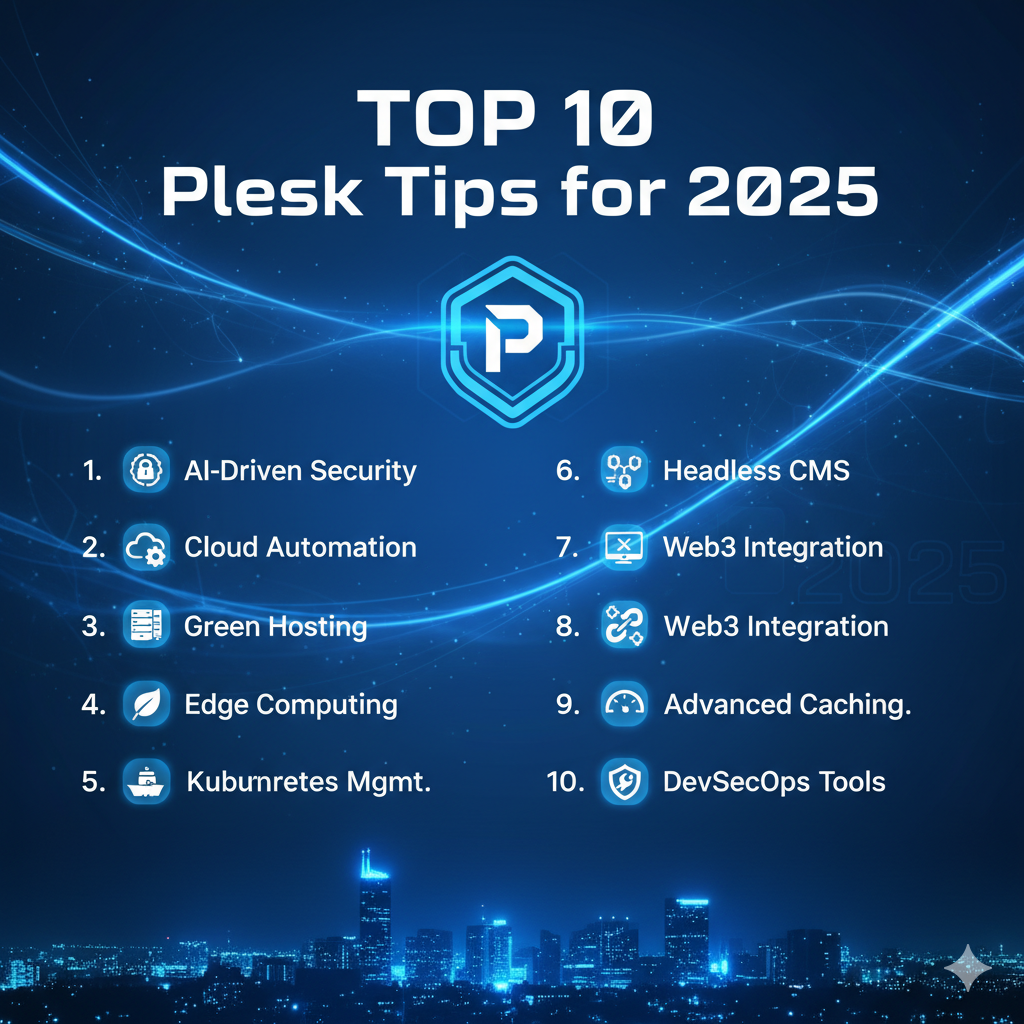
As the digital landscape evolves, so does the need for powerful tools that simplify web hosting and server management. Plesk has long been a favorite among web hosting professionals due to its ease of use, extensive functionality, and strong security features. As we head into 2025, Plesk continues to evolve, offering new features, integrations, and functionalities that make it an indispensable tool for businesses, developers, and webmasters.At Informatix Systems, we understand that web hosting can be complex, especially for those who are managing multiple websites or server environments. That's why we’ve put together this comprehensive guide on the top 10 Plesk tips for 2025. Whether you’re a beginner or an experienced user, these tips will help you get the most out of Plesk, improve performance, enhance security, and streamline your workflow.
Keep Plesk Updated
In the fast-paced world of web hosting, staying up to date with the latest software versions is critical. Plesk regularly releases updates that include new features, security patches, and performance improvements. These updates ensure that you’re using the most secure and stable version of Plesk, which is essential for managing your websites and servers effectively.
Why Is Updating Plesk Important?
-
Security: New versions of Plesk often include security patches to protect against emerging threats. Keeping Plesk up to date ensures your system is resilient against attacks.
-
New Features: Plesk continuously introduces new features to help users streamline their hosting and server management tasks. These features can significantly improve your productivity.
-
Bug Fixes: Updates often come with bug fixes that improve the overall functionality and performance of the platform.
How to Update Plesk:
-
Log in to your Plesk admin panel.
-
Navigate to Tools & Settings > Plesk > Updates and Upgrades.
-
Select Install the Latest Version and follow the prompts to update.
Regular updates are crucial for maintaining the integrity and performance of your Plesk installation, so set up a schedule to check for updates regularly.
Utilize Extensions for Enhanced Functionality
Plesk’s extension ecosystem is one of its most powerful features. Extensions can enhance your Plesk experience by adding new tools and functionalities that cater to your specific needs. Whether you need to integrate with third-party applications, improve security, or optimize your websites, there’s likely an extension for it.
Popular Plesk Extensions:
-
Cloudflare: Seamlessly integrate Cloudflare’s CDN and security features to improve your website’s speed and protection.
-
Let’s Encrypt: Automatically generate and install free SSL certificates for your websites to ensure secure connections.
-
SEO Toolkit: Improve the SEO of your websites with a set of tools designed to analyze and enhance your site’s search engine visibility.
-
Docker: Use Docker containers within Plesk to deploy applications and services more efficiently.
How to Install Extensions:
-
In your Plesk admin panel, navigate to Extensions in the left sidebar.
-
Browse or search for the desired extension and click Install.
-
Follow the prompts to complete the installation and configure the extension.
Extensions make it easy to tailor your Plesk experience to meet the specific requirements of your business or hosting environment, saving you time and effort.
Automate Tasks with Scheduled Jobs
Managing websites and servers involves repetitive tasks, such as backups, updates, and performance checks. One way to simplify these tasks is by using Scheduled Jobs in Plesk. This feature allows you to automate recurring tasks and free up your time for other important responsibilities.
What Can You Automate with Scheduled Jobs?
-
Backup Creation: Set up automatic backups to ensure your data is always protected.
-
Server Maintenance: Automate server updates or cleanup tasks to keep your hosting environment optimized.
-
Cron Jobs: Schedule regular tasks like email marketing campaigns, content updates, or database optimization.
How to Set Up Scheduled Jobs:
-
Navigate to Tools & Settings > Scheduled Tasks in the Plesk panel.
-
Click Add Task and specify the task you want to automate, along with the frequency and execution time.
-
Enter the script or command to run and save the scheduled task.
Automating tasks reduces manual effort and ensures that your hosting environment stays up to date and secure without requiring constant intervention.
Set Up Backups for Disaster Recovery
Disasters can strike at any time, from server crashes to hacking attempts. Having a reliable backup strategy in place is crucial for ensuring your websites and data are safe. Plesk offers several options for backup management, from full server backups to individual website backups.
Types of Backups:
-
Full Backups: These include everything your entire server configuration, settings, and data.
-
Incremental Backups: These backups only include changes made since the last backup, saving time and storage space.
-
Website-Specific Backups: Create backups of individual websites to restore specific websites rather than the entire server.
How to Set Up Backups:
-
Go to Tools & Settings > Backup Manager in your Plesk panel.
-
Click Schedule Backup and configure the frequency (daily, weekly, etc.).
-
Choose whether you want to back up the entire server or individual websites, and select your storage destination (local, remote FTP, cloud storage).
Having regular backups will help you recover quickly in case of an emergency and avoid data loss.
Optimize Website Performance with Caching
Website speed is crucial for both user experience and SEO rankings. Plesk offers built-in tools and integrations to optimize website performance, particularly through caching mechanisms.
Caching Options in Plesk:
-
Varnish Cache: Varnish is a powerful HTTP accelerator that can cache content and serve it faster to visitors. It’s ideal for dynamic websites.
-
Nginx Caching: Plesk integrates Nginx as a reverse proxy for increased website performance by caching static content.
-
LiteSpeed Cache: If you’re using LiteSpeed as your web server, the LiteSpeed Cache extension can dramatically improve your website’s speed.
How to Set Up Caching:
-
Navigate to Extensions > All Extensions in Plesk.
-
Search for the desired caching extension (e.g., Varnish, Nginx).
-
Install the extension and follow the configuration instructions.
Using caching will improve your website’s loading times and reduce server load, leading to a better user experience and improved search engine rankings.
Enhance Security with Multi-Factor Authentication
Security is a top priority for any web hosting environment. One of the best ways to safeguard your Plesk panel is by implementing multi-factor authentication (MFA). This adds an extra layer of protection, ensuring that even if someone gets hold of your password, they won’t be able to access your Plesk panel without the second factor.
How to Enable MFA:
-
In Plesk, go to Tools & Settings > Security > Two-Factor Authentication.
-
Follow the prompts to enable MFA and link your mobile device using an app like Google Authenticator.
-
Once set up, MFA will be required every time you log in to Plesk.
MFA is a simple yet powerful security measure that can significantly reduce the risk of unauthorized access.
Use Plesk’s SEO Toolkit
If you’re managing websites, you understand the importance of SEO (Search Engine Optimization) for online success. Plesk’s SEO Toolkit provides a set of tools that help you optimize your websites for better search engine rankings.
Key Features of the SEO Toolkit:
-
SEO Analysis: Perform a thorough SEO audit of your website to identify potential issues and areas for improvement.
-
Keyword Management: Track keywords and monitor your rankings over time.
-
Competitor Analysis: Analyze your competitors’ websites and gain insights into their SEO strategies.
How to Use the SEO Toolkit:
-
Navigate to Extensions > SEO Toolkit and install it.
-
Once installed, you can run SEO audits, optimize content, and track rankings directly from the Plesk panel.
The SEO Toolkit helps you stay competitive in the ever-changing landscape of search engine algorithms, ensuring that your websites perform well in search rankings.
Leverage Plesk's Integration with Docker
Docker containers have revolutionized how we deploy and manage applications, and Plesk’s Docker integration makes it easier than ever to deploy and manage containerized applications.
Benefits of Using Docker with Plesk:
-
Efficient Application Deployment: Deploy applications quickly and easily with pre-built Docker images.
-
Isolation: Docker containers isolate applications, making them more secure and reducing conflicts with other software.
-
Portability: Docker containers are highly portable, making it easy to move applications between different environments.
How to Use Docker in Plesk:
-
Navigate to Extensions > Docker and install the Docker extension.
-
Use the Docker interface in Plesk to deploy, manage, and monitor your containers.
Using Docker with Plesk gives you greater flexibility in deploying and managing applications, making it an excellent choice for modern web hosting environments.
Utilize the Power of Plesk's Reseller Features
For web hosting businesses or service providers, Plesk’s reseller features are incredibly powerful. They allow you to create and manage customer accounts, providing an easy way to scale your hosting business.
Key Reseller Features in Plesk:
-
Reseller Accounts: Create reseller accounts that allow clients to sell hosting services to their own customers.
-
Customizable Branding: Customize Plesk’s interface with your own branding to provide a white-label solution for your clients.
-
Billing Integration: Integrate with billing systems like WHMCS to automate invoicing, payments, and customer management.
How to Set Up a Reseller Account:
-
Go to Tools & Settings > Reseller Settings in Plesk.
-
Configure reseller accounts, set permissions, and customize the interface as needed.
By utilizing Plesk’s reseller features, you can expand your hosting business with ease.
Regularly Monitor and Analyze Your Server's Health
Monitoring server performance and health is crucial for ensuring that your websites remain up and running smoothly. Plesk provides built-in monitoring tools to help you keep track of server resources, logs, and other important metrics.
Key Monitoring Features in Plesk:
-
Server Health Monitoring: Track CPU, memory, and disk usage.
-
Log Viewer: Access and analyze server logs for troubleshooting.
-
Resource Alerts: Set up notifications for when resource usage exceeds certain thresholds.
How to Use Plesk’s Monitoring Tools:
-
Go to Tools & Settings > Server Health to view real-time server performance data.
-
Set up alerts in Tools & Settings > Notifications to receive notifications for critical events.
Regularly monitoring your server’s health ensures that you can detect and address potential issues before they become major problems.
Need help ?
Contact us at support@informatix.systems.
No posts found
Write a review